
Setup Raya in Slack
Setup Steps
-
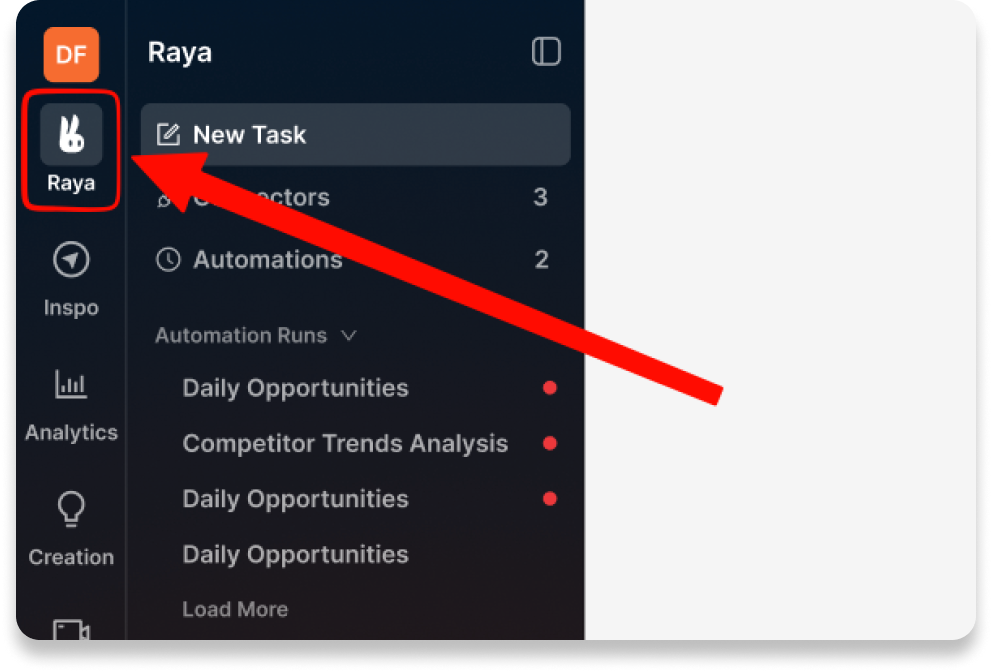
Go to the “Raya” tab in your workspace.
-
Click “Set up Raya in Slack now and simply @Raya anytime”
If your Slack workspace was connected before, you may see:
“More Slack permissions needed for Raya”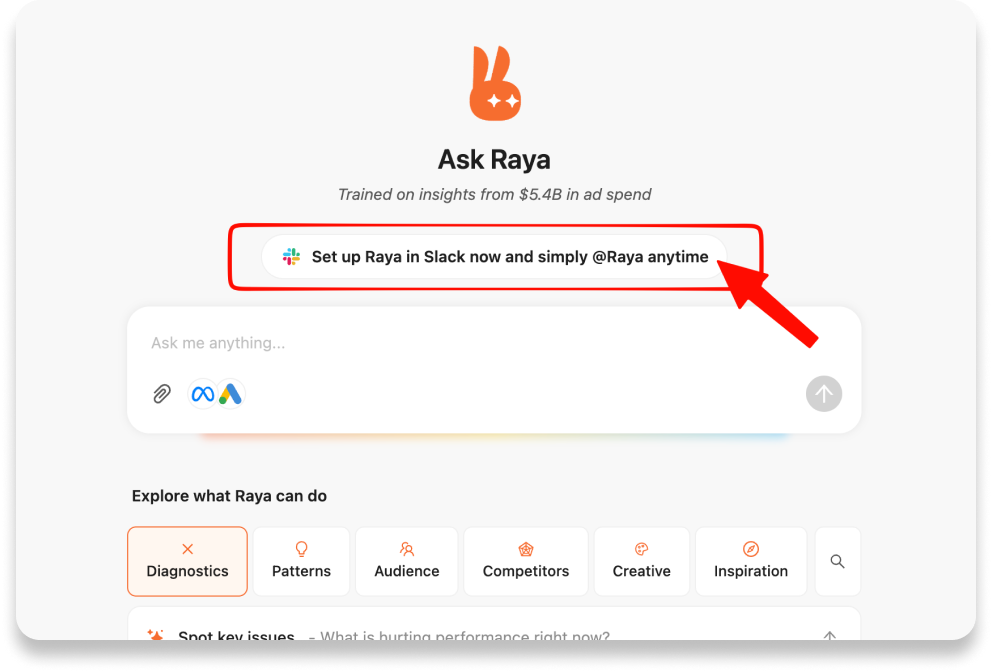
-
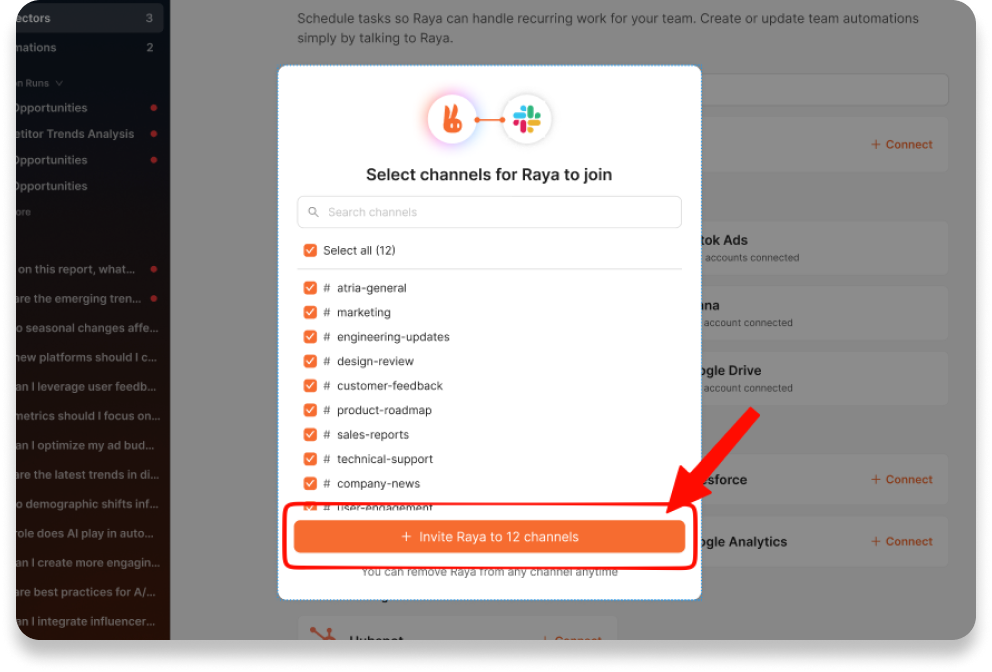
Select the Slack channels where you want Raya to help, then click “Invite Raya to channels”
You can always invite Raya to any channel later using “/invite @Raya”, or remove Raya from channels anytime.
You're all set!
Raya will introduce herself in the selected channels shortly. Just @Raya anytime when you need help.
Try asking Raya
-
Competitor Intelligence
@Raya Analyze my competitors’ latest ads, identify their boldest claims, strongest offers, and repeated messaging angles. Recommend what we should respond to, learn from, or test next.
-
Winning Ad Angles
@Raya Analyze which ad angles performed best last week across our Meta ads. Group the creatives by angle, compare performance, and recommend 3 new angles we should test next.
-
Weekly Performance Recap
@Raya Create a weekly ads performance recap for this channel. Highlight key wins, biggest drops, budget opportunities, and the next actions we should take.
Things to note
To keep Raya’s context accurate, each Slack workspace can only be connected to one Atria workspace currently.
If you face any issues during the setup. Feel free to contact us in Slack.
Updated 4 months ago